🍎 iOS Basic Tutorial (Shadowrocket)
This chapter will help you quickly get started with Shadowrocket, one of the most popular network proxy tools for iOS.
If this is your first time using it, it can help you easily connect to your subscription and use encrypted proxy access or internal network resources.
📱 What Is Shadowrocket?
Shadowrocket is a proxy client designed for iPhone and iPad. Its main features include:
- Multiple proxy protocols
- One-click subscription import
- Automatic node and rule updates
- Smart traffic routing
Note: Shadowrocket is a paid third-party client listed in non-mainland App Store regions. It cannot be downloaded directly from the mainland China App Store. You must log in with an App Store account from another region to download it.
🍎 Step 1: Log In to a Non-Mainland App Store
- Open your iPhone or iPad.
- Open App Store, tap the avatar icon in the upper-right corner, scroll to the bottom, and tap Sign Out.
- For your convenience, we provide a shared non-mainland App Store account that has already purchased Shadowrocket.
- Copy the account and password below, then tap Sign In. If an Apple ID Security prompt appears, tap Other Options at the bottom, then tap Don't Upgrade to continue logging in.
- After logging in, tap the Search icon in the bottom menu of App Store, then search for Shadowrocket and download it.
- After installation, the Shadowrocket icon will appear on your home screen.
- Do not change the password of the shared account, and do not use it for any Apple service outside App Store.
- Do not log in to iCloud! Do not log in to iCloud! Do not log in to iCloud! This is important enough to repeat three times.
- After use, sign out of the shared account immediately to avoid affecting other users.
View image tutorial
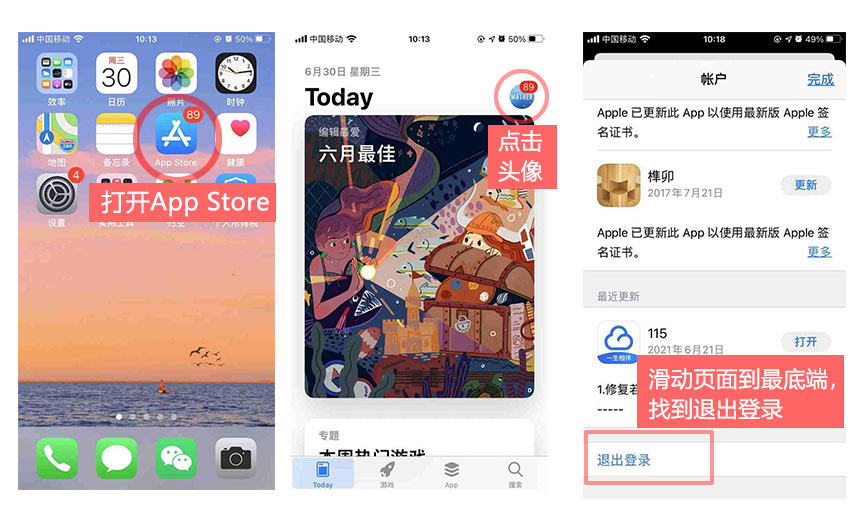
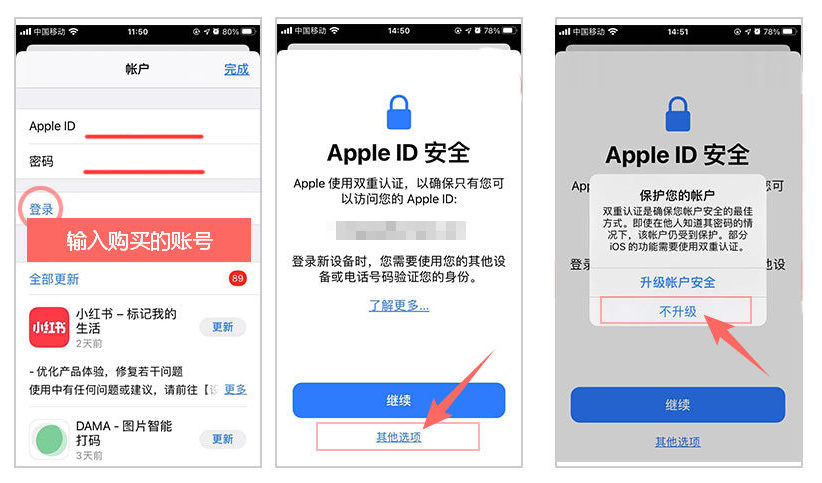
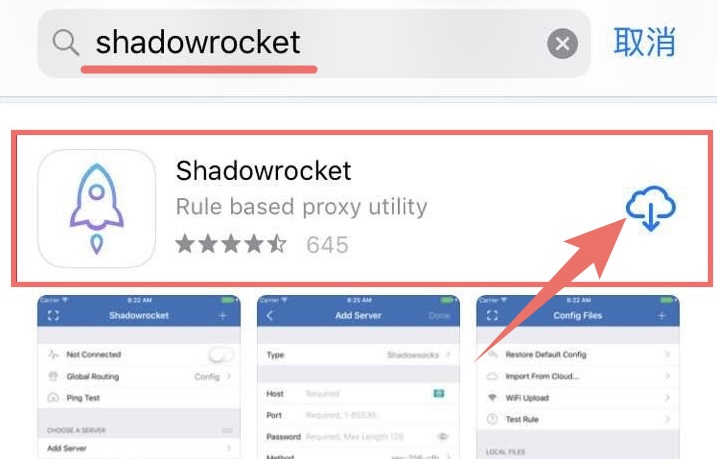
Tip: 👆 The image tutorial above shows the steps clearly.
Tip: Please use an iOS account marked as "Available".
🔗 Step 2: Import the Subscription Profile
- 👉👉👉 On the official website Dashboard, scroll down to Third-Party Client Subscriptions. This area is not shown if you have not purchased a plan.
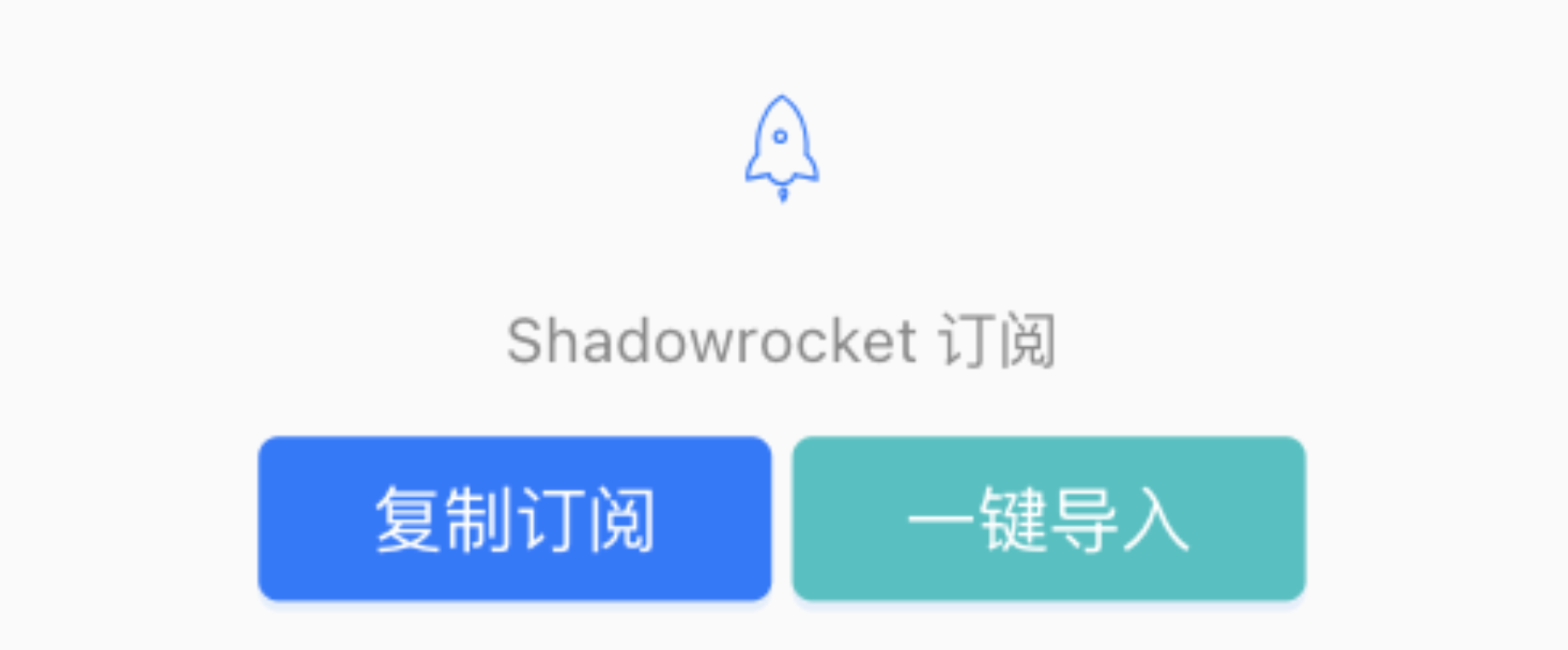
- Click Shadowrocket Subscription to import with one click.
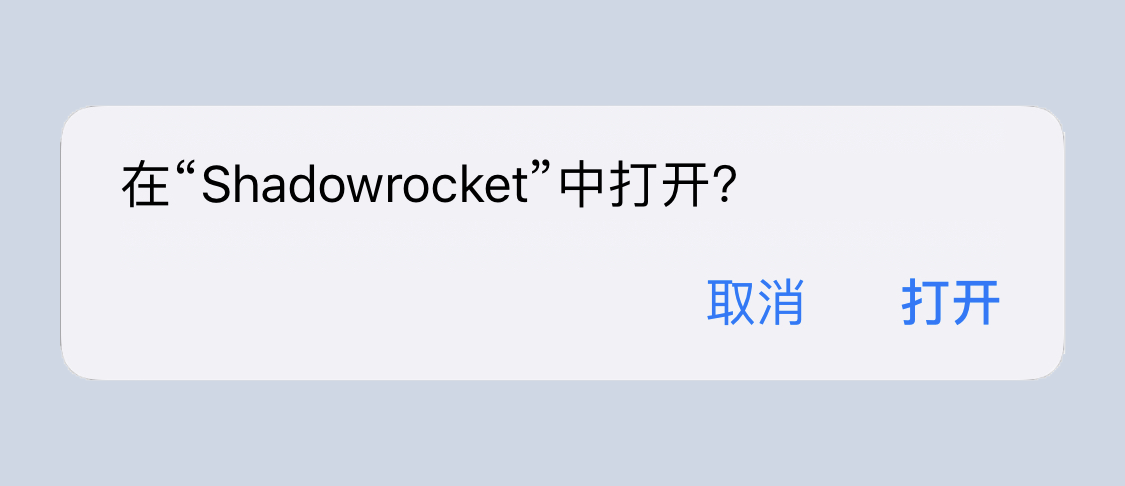
- Your browser will switch pages and ask whether it is allowed to open the client. Please allow this action.
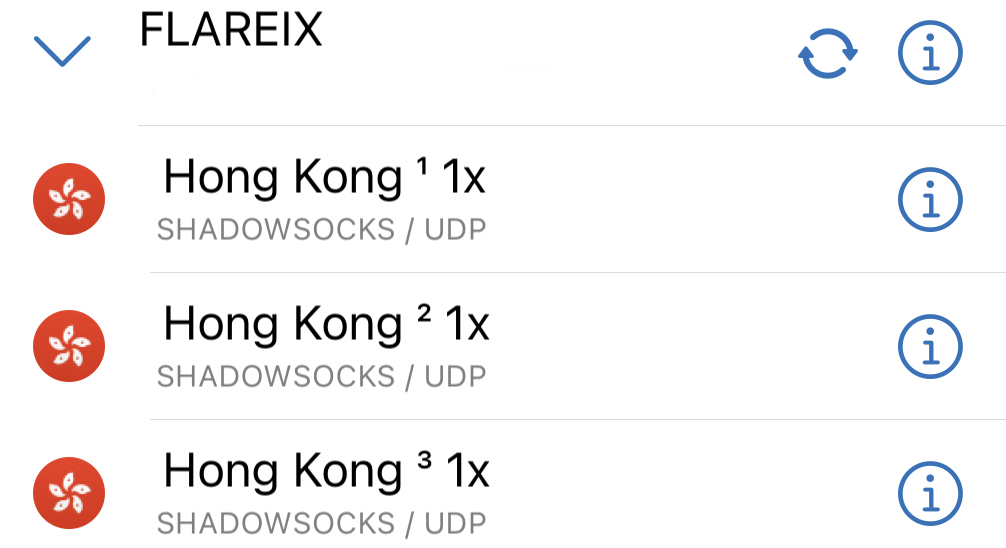
- The app will open automatically. After a moment, when "Success" appears, the FLAREIX subscription imported into the third-party client will be displayed.
- If it shows "Failed", try switching between 5G and Wi-Fi. If the one-click subscription import link cannot open the client, switch to Google Chrome or Safari.
View image tutorial
Tip: 👆 The image tutorial above shows the steps clearly.
🤭 Step 3: Start Using
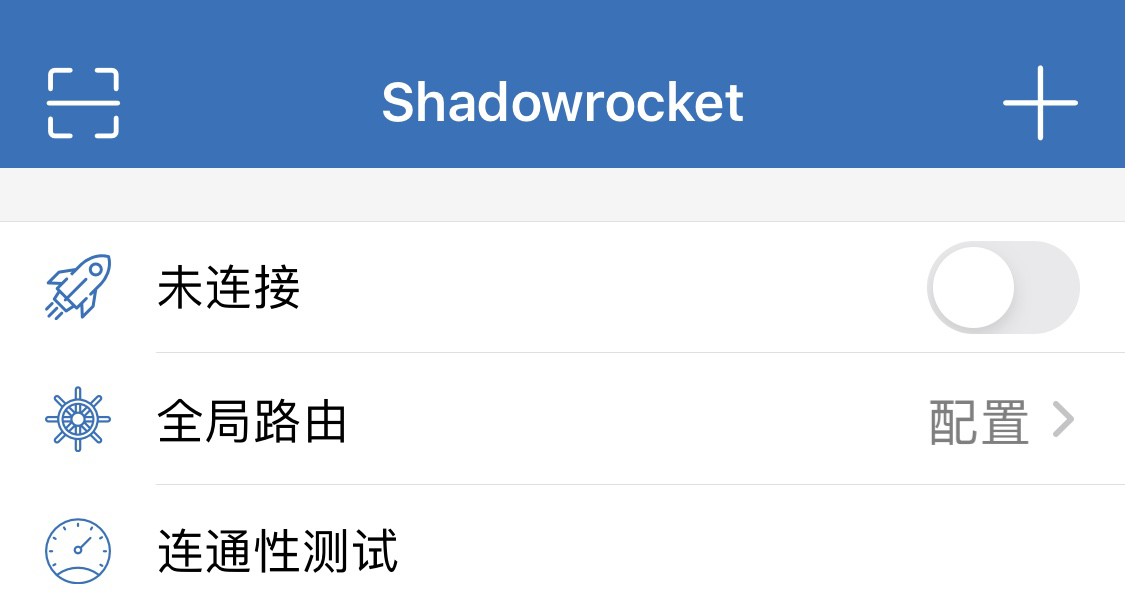
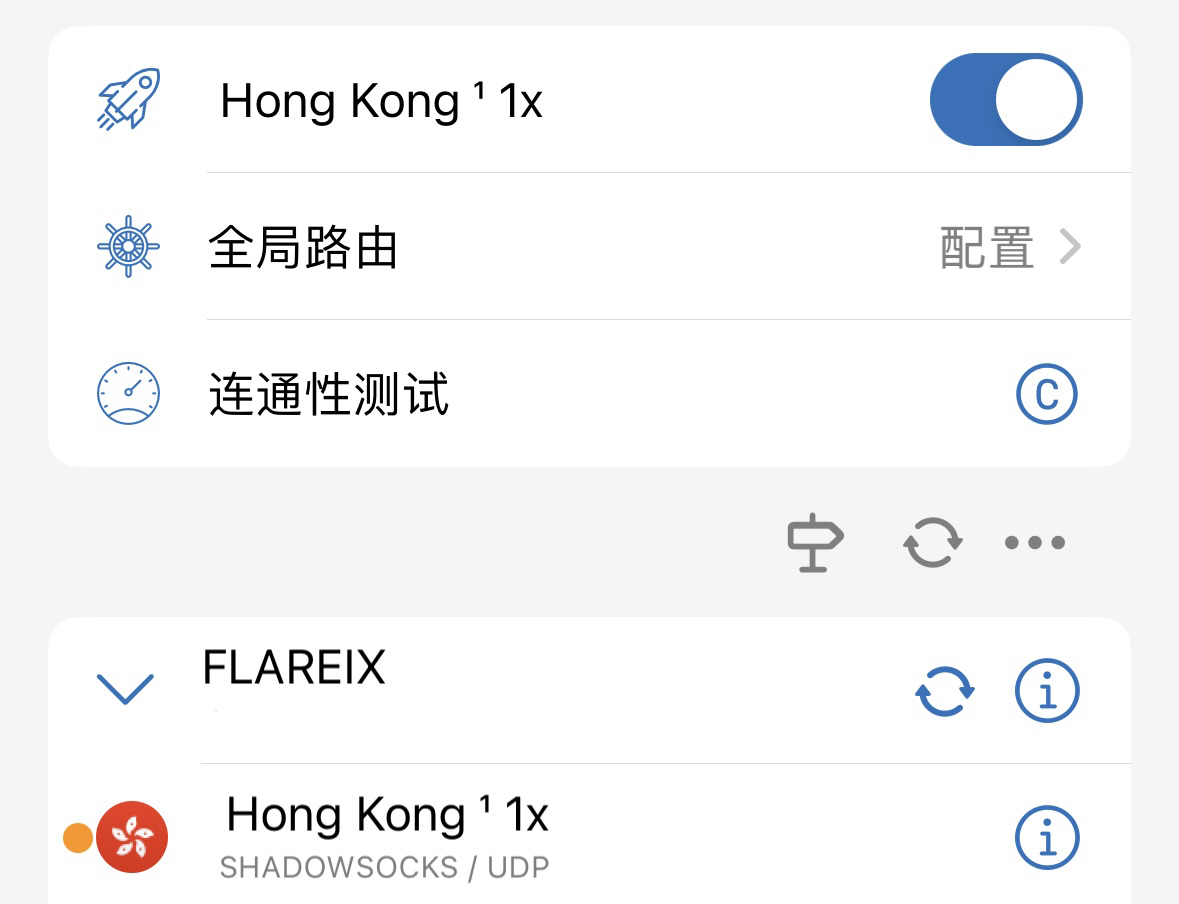
- In the node list, select a regional node and turn on the switch at the top to enable it.
- On first use, the system needs to verify your lock screen passcode. This will not cause any privacy leak.
- Open google.com and try it.
View image tutorial
Tip: 👆 The image tutorial above shows the steps clearly.
💡 FAQ
Why are nodes unavailable?
- Due to protocol characteristics, the device system time must be within 2 minutes of the local standard time.
- If the time difference is too large, subscription updates, node connections, or authentication may fail. We recommend enabling automatic date, time, and time zone settings.
How do I update subscription nodes in Shadowrocket?
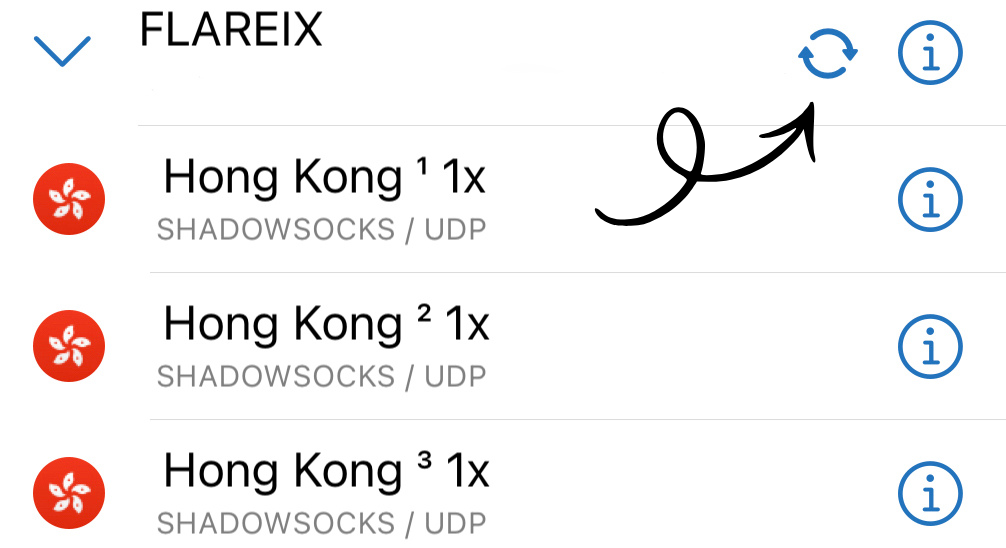
- Nodes are updated from time to time. If they are not updated promptly, the service may become unavailable. Updating the subscription server also updates the nodes.
- The home page will show the FLAREIX subscription group. Tap the update button on the right. After a moment, when you see "Success", the subscription nodes have been updated.
What do Config, Proxy, and Direct mean?
- Shadowrocket Global Routing has 4 options, but only 3 are commonly used.
- Config: After selecting this option, Shadowrocket uses built-in rules to automatically determine whether your current usage scenario needs a proxy. This setting is recommended.
- Proxy: After selecting this option, Shadowrocket stops using built-in rules and all traffic uses the proxy. Use this setting carefully.
- Direct: After selecting this option, Shadowrocket will not use the proxy in any scenario. This has the same effect as closing Shadowrocket, so there is usually no need to use this setting.
How do I check whether a node is available?
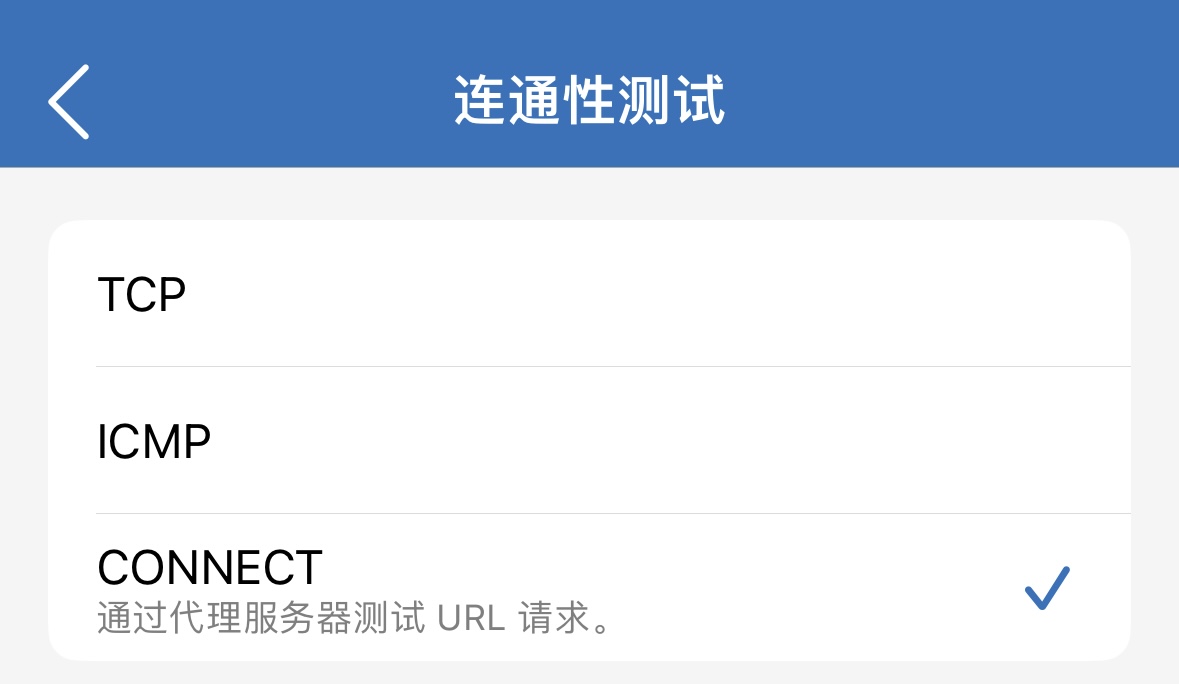
- In Connectivity Test, select CONNECT mode.
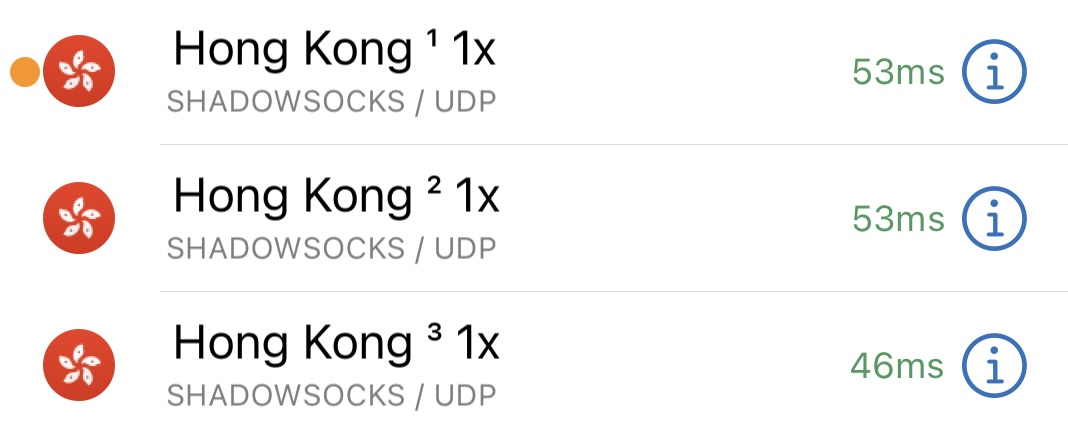
- Tap Connectivity Test on the home page, and node latency will begin to appear.
- Nodes that do not show failed latency can be used. You can run Connectivity Test multiple times for a more accurate result.
This concludes the basic iOS Shadowrocket tutorial. To learn more, please read the other chapters.